Microsoft 365 Copilot Auditing Sample - Part 1: Web-Grounded Prompts
Microsoft 365 Copilot: Governance with Purview

In this post, I explore a detailed example of how a Copilot interaction in Microsoft 365 Copilot Chat can be traced and analyzed through Microsoft Purview.
SKIP AHEAD TO SECTION:
Scenario: Web Knowledge
By leveraging real-time web data, users can enrich their interactions beyond the static training knowledge of the language model.
This journey will be particularly relevant for both unlicensed users of Copilot Chat in organizations with web search enabled and licensed Microsoft 365 Copilot users working in enterprises with the same feature.
Sample Web-Grounded Copilot Interaction in Microsoft 365 Copilot Chat
Running a simple prompt that utilizes anonymized web search from the Bing Search Service, the Copilot Chat user sees a response that includes three citations.
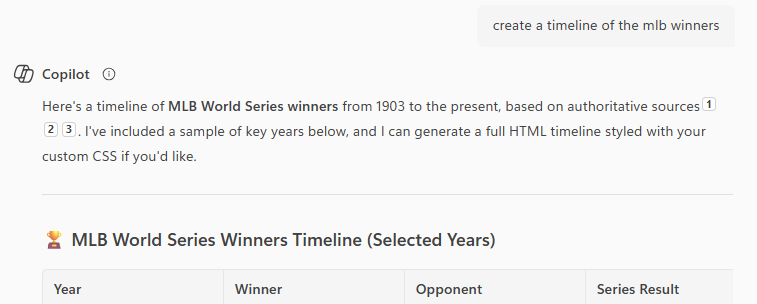
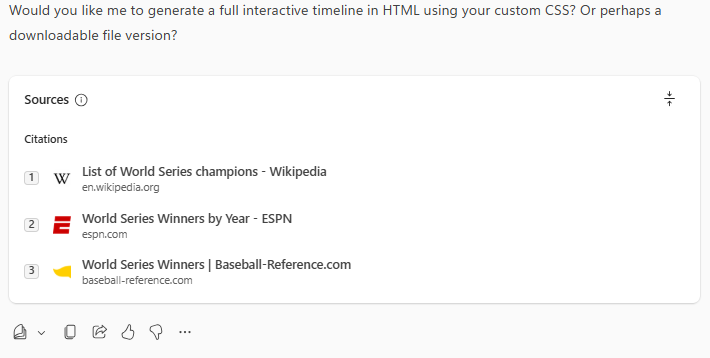
Simple, no?
Now let’s compare that to what a compliance admin or delegated viewer could see for the corresponding interaction in Microsoft Purview.
Data Security Posture Management for AI: Sample AI Interaction
The same Copilot interaction appears in Purview’s Activity Explorer, part of the recently introduced DSPM for AI view.
The activity explorer data is available for export through the UI but as of August 2025 does not have an API endpoint.
Compliance viewers can filter for AI Interaction activities under the “Copilot experiences & agents” app category.
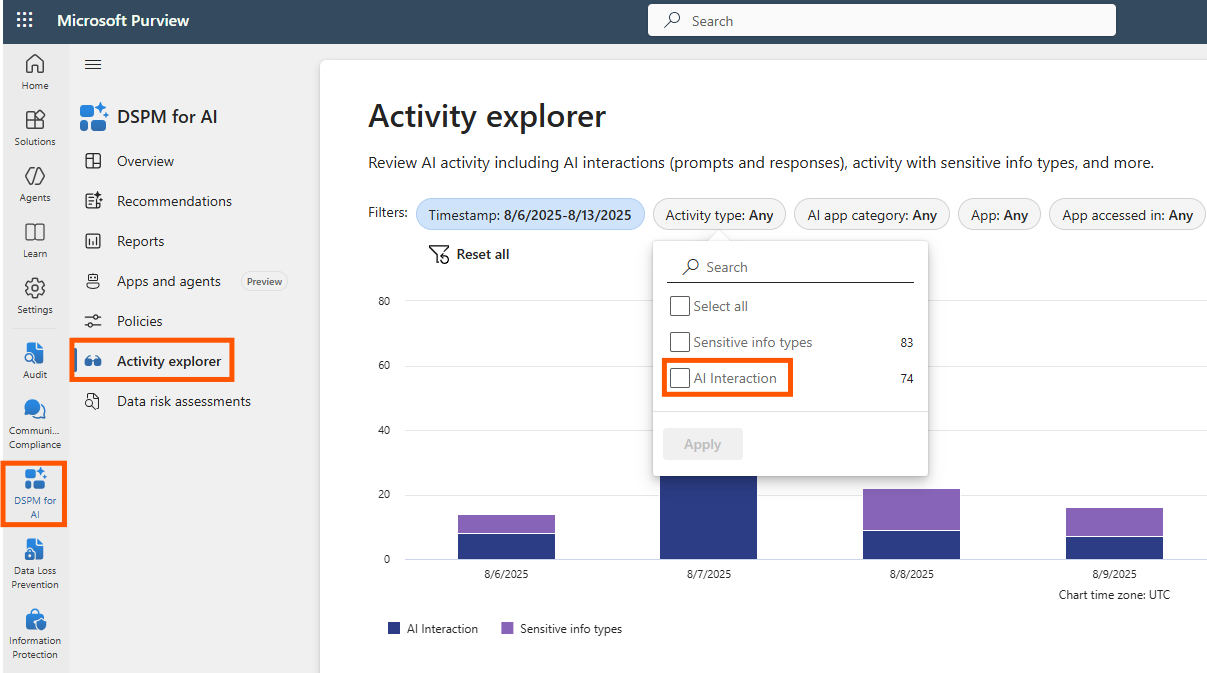
Selecting the individual interaction that corresponds to the sample opens a pane on the right.
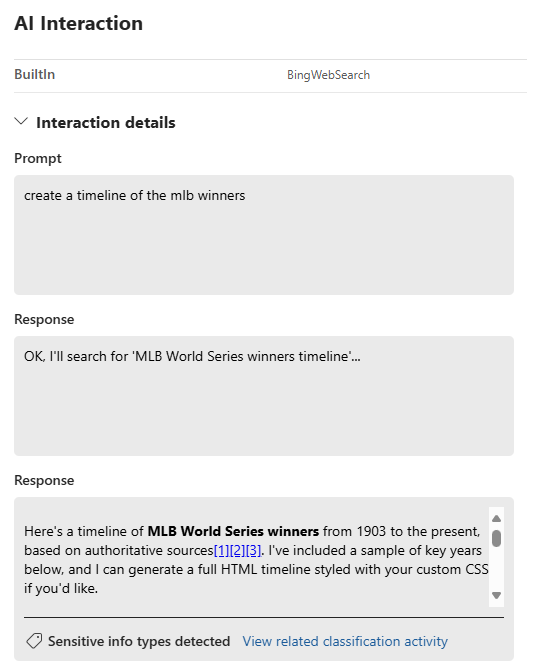
The Activity Explorer displays the use of the BingWebSearch plugin, showing that the response relied on web-grounded data.
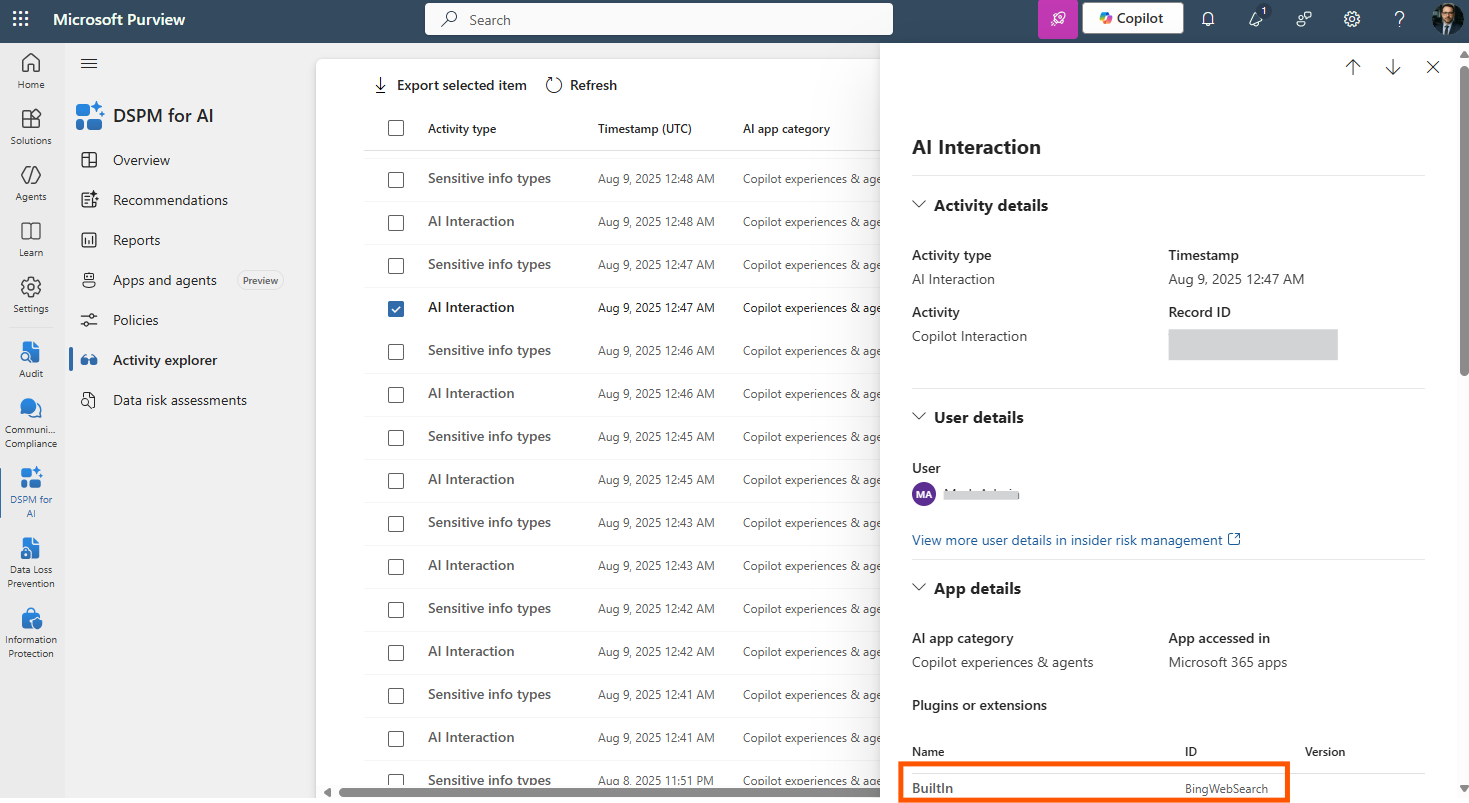
Scrolling down, the pane displays the detailed input prompt and output response(s).
Note that the initial response was a chat completion that the user would have temporarily viewed on the screen while Copilot worked on the final response.
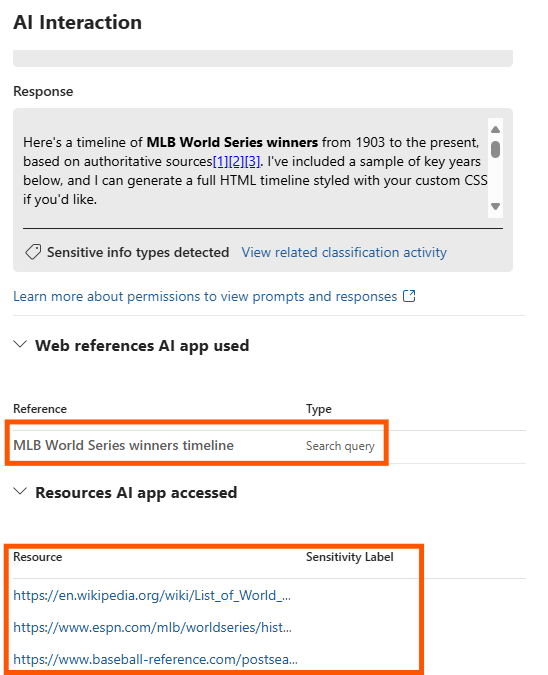
Continuing to scroll, the interaction displays a reference for the search query as well as links to the three web citations delivered to the user.
Unified Audit Log: Sample Web-Grounded CopilotInteraction record
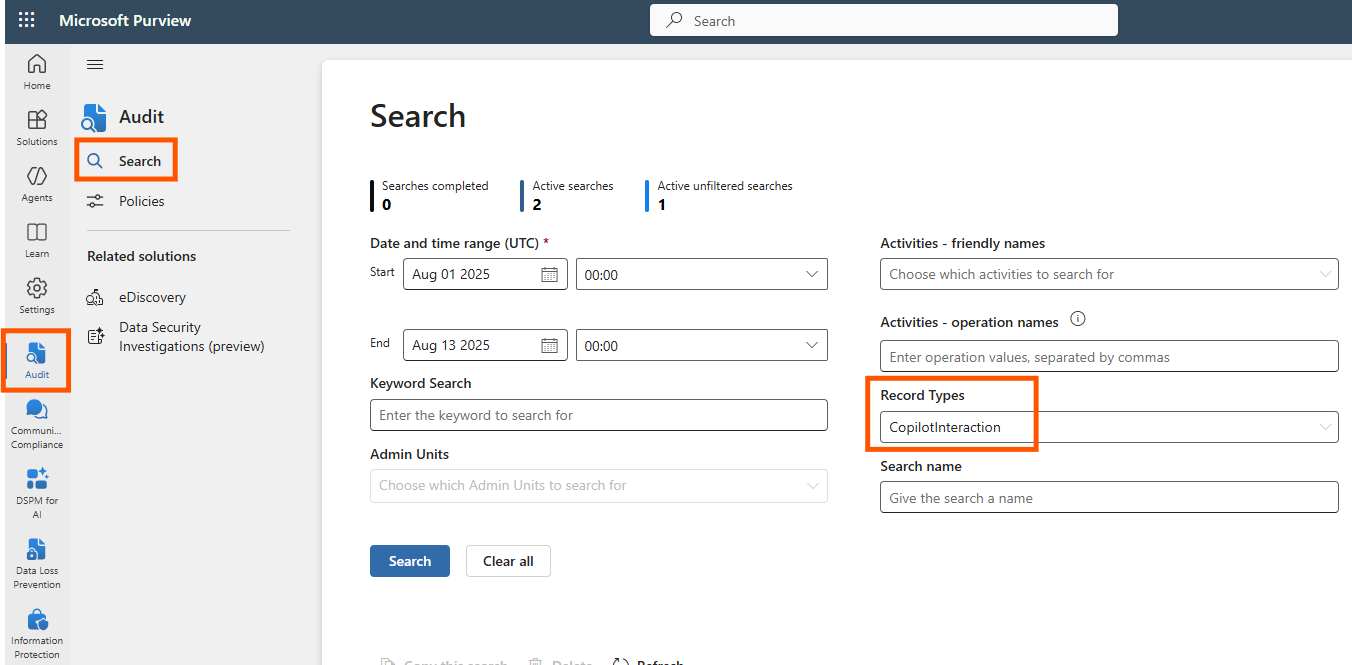
As with other Microsoft applications, the unified audit log contains data for Copilot under the CopilotInteraction record type.
The following audit log example corresponds to the user interaction above from Copilot Chat and Purview’s DSPM for AI.
I obtained this data from the UI, but admins who are already getting this data for their enterprise might use an automated solution that relies on the Office 365 Management APIs or PowerShell, for example. Teams using the API can filter for this Copilot data using RecordType = 261.
In particular, compare these details in the JSON object with the DSPM for AI sample above:
The inclusion of “BingWebSearch” as a plugin and “WebSearchQuery” as an accessed resource shows that this interaction used web-grounding
Compliance viewers with access to the audit log data also see the URL sources used for the Copilot response citations.
The audit log data is a bit more granular. For example, it shows Microsoft’s jailbreak detection result (true/false) for every message as well as Model transparency details (when included as appropriate).
{
    "CreationTime": "2025-08-09T00:45:08",
    "Id": "2fb03df7-0000-0000-0000-000000000000",
    "Operation": "CopilotInteraction",
    "OrganizationId": "e5476265-0000-0000-0000-000000000000",
    "RecordType": 261,
    "UserKey": "4e32fb7c-0000-0000-0000-000000000000",
    "UserType": 0,
    "Version": 1,
    "Workload": "Copilot",
    "ClientIP": "",
    "UserId": "user@tenant.onmicrosoft.com",
    "ClientRegion": "us",
    "CopilotEventData": {
        "AISystemPlugin": [
            {
                "Id": "BingWebSearch",
                "Name": "BuiltIn"
            }
        ],
        "AccessedResources": [
            {
                "Action": "Read",
                "PolicyDetails": "",
                "SiteUrl": "https:\/\/www.mlb.com\/news\/teams-with-the-most-world-series-titles-c299893938"
            },
            {
                "Action": "Read",
                "PolicyDetails": "",
                "SiteUrl": "https:\/\/en.wikipedia.org\/wiki\/List_of_World_Series_champions"
            },
            {
                "Action": "Read",
                "PolicyDetails": "",
                "SiteUrl": "https:\/\/www.sportingnews.com\/us\/mlb\/news\/world-series-wins-team-most-championships-mlb-history\/rmsodxfxnkwjienxhs3kjnyt"
            },
            {
                "Action": "Read",
                "Type": "WebSearchQuery"
            }
        ],
        "AppHost": "Office",
        "Contexts": [],
        "MessageIds": [],
        "Messages": [
            {
                "Id": "1754000000000",
                "JailbreakDetected": false,
                "isPrompt": true
            },
            {
                "Id": "1754000000000",
                "JailbreakDetected": false,
                "isPrompt": false
            },
            {
                "Id": "1754000000000",
                "JailbreakDetected": false,
                "isPrompt": false
            }
        ],
        "ModelTransparencyDetails": [
        ],
        "ThreadId": "19:L2mo5_00000000000000000000@thread.v2"
    },
    "CopilotLogVersion": "1.0.0.0"
}
Conclusion
Understanding the intricacies of Copilot interactions and their corresponding views in Microsoft Purview is crucial for compliance and data security. Following this simple but common example, you can gain insights into how web-grounded data is utilized and monitored within your organization.
If you haven't already, consider enabling web search for your Copilot users to maximize the value of Copilot Chat.
Future examples will explore additional types of interactions such as Microsoft Graph (“Work” data) grounding and agent interactions.